Step: 1
Launch Microsoft Outlook 2016. Click the File from the menu bar.

Step: 2
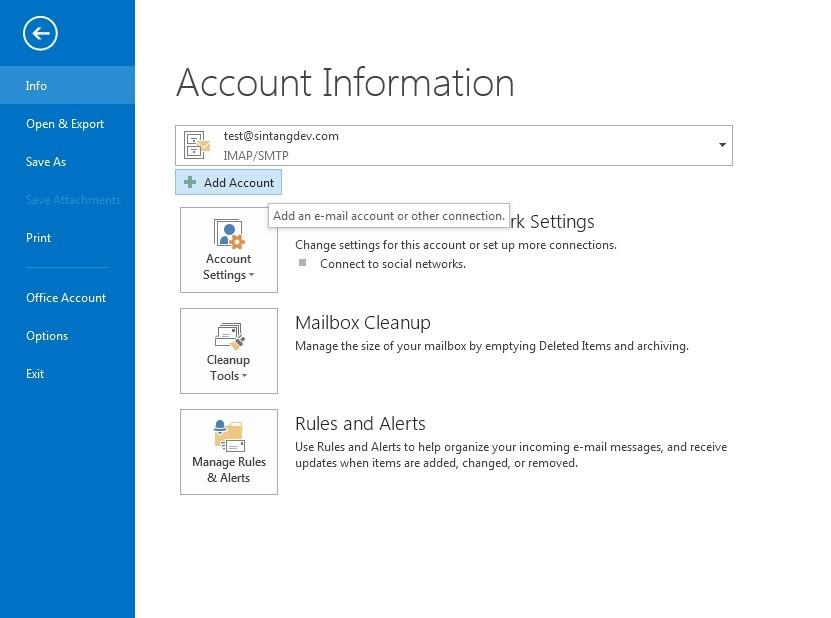
In Account Information page, click the Add Account button.
Step: 3
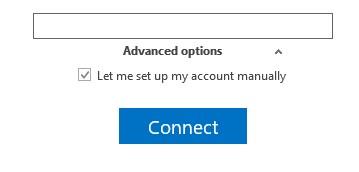
Select Manual setup or additional server types, and then click the Next button
Step: 4
Choose IMAP and then click “Next”

After that enter the account details
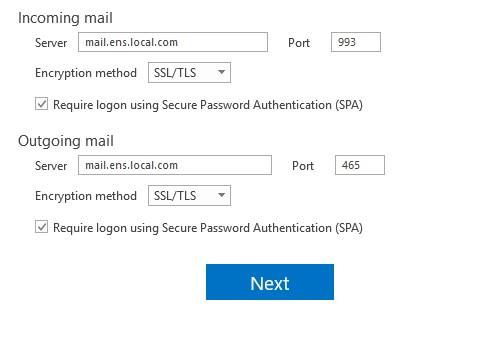
Incoming Mail:
Server: mail.yourdomain.com (Use your own email domain, this is just a guideline on what to key in)
Encryption method: SSL/TLS
Port: 993
Outgoing Mail:
Server: mail.yourdomain.com (Use your own email domain, this is just a guideline on what to key in)
Encryption method: SSL/TLS
Port: 465
Once finish key in all the account details, click “Next”
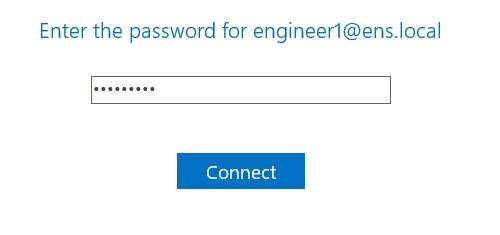
It will prompt out a message asking you to key in the password. Once key in the password then click Connect and wait for it to connect your account from the server. Then it is finished and ready to be used