Step: 1
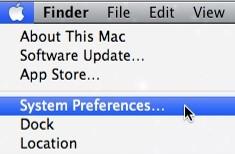
Click on the apple icon located on the top right of the screen
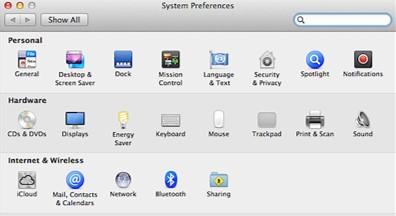
Select System Preferences > Mail, Contacts & Calendars
Step: 2 (Add an Email Account)
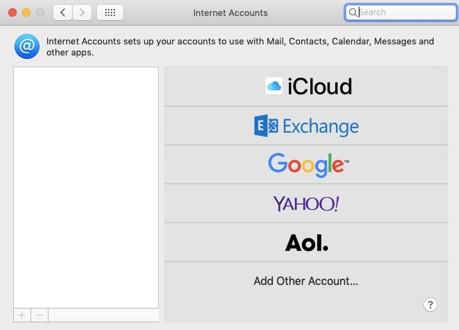
Click on “Add Other Account” and several options will appear
Find and click on Mail Account
Type in the name you want to give your email account, your email address and password
Click “Sign In”
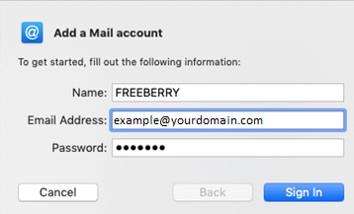
Name: Your Own Name
Email: example@yourdomain.com (Your own email address)
Password: Your own email password
Step: 3 (Account Setup)
Make sure the account type is set as“IMAP”
Click “Sign In” and your Email account will be created
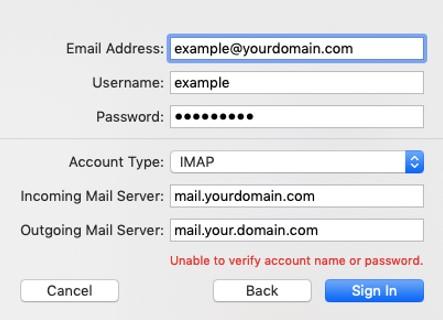
Incoming Mail Server: mail.yourdomain.com
Outgoing Mail Server: mail.yourdomain.com
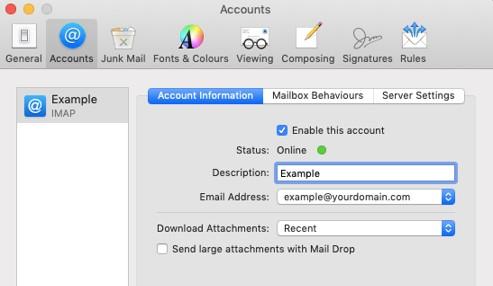
Step: 4 (Change Server Setting)
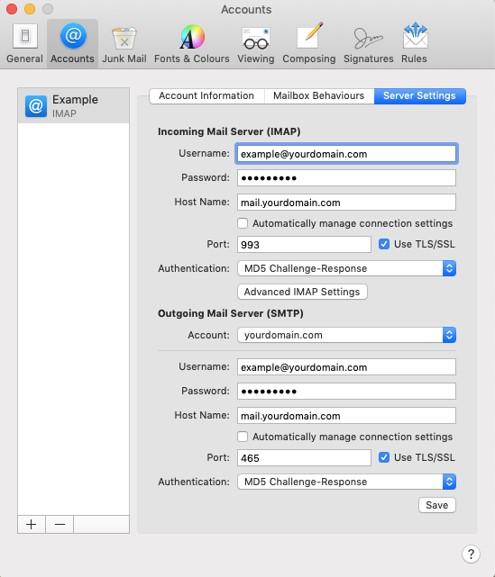
Go to Server Settings
Untick the “Automatically manage connection settings” for the “Port” and “Authentication” to appear
Make sure the Incoming Server Port is set to 993 and Outgoing Server Port is set to 465
Once everything is complete, click “Save”