
Step: 1 (Add your IMAP email account)
Go to Settings > Accounts > Add Account
Select IMAP to continue
Step: 2 (Enter your Email Address)
Enter all the details in the required field to proceed, Click Next
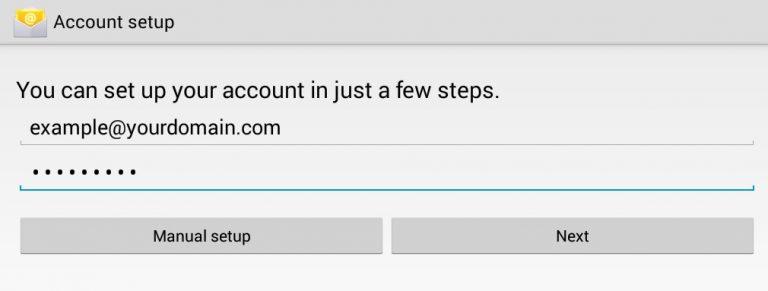
Email: example@yourdomain.com
Password: Your email password
Select IMAP again to modify the Email server setting
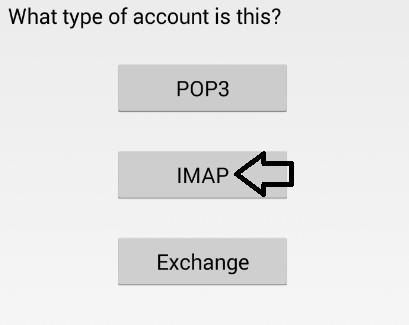
Step: 3 (Account Setup)
Enter all the details in the fields for Incoming Mail server
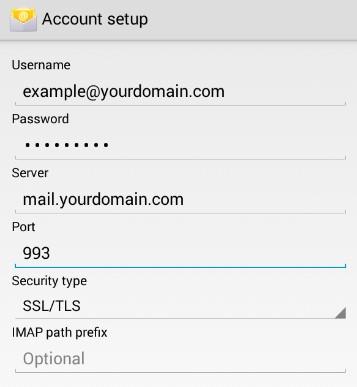
Username: example@yourdomain.com (Refer to your own email account)
Password: Your email password
Server: mail.yourdomain.com
Port: 993
Security type: SSL
IMAP path prefix: Optional
Same goes for Outgoing Mail server (SMTP)
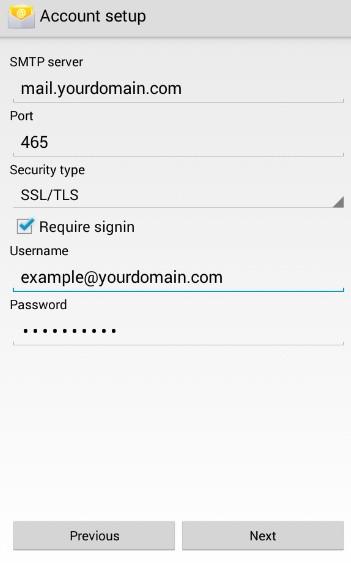
SMTP server: mail.yourdomain.com
Port: 465
Security type: SSL
Username: example@yourdomain.com (same refer to your own email address)
Password: Your own email password
Select the option according to your requirement. Then click Next
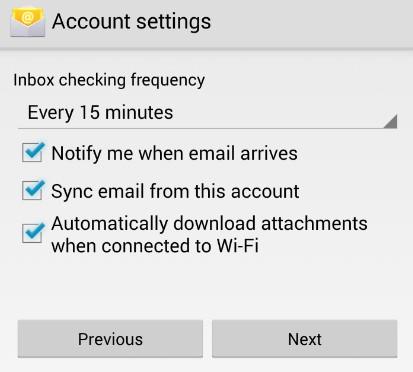
Enter the final information into your account
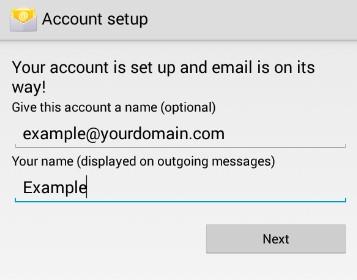
Give this account a name (Optional): example@yourdomain.com (Your email address)
(This is the easiest way to differentiate between accounts if you have more than 1)
Your name: Name displayed on email messages.
After you entered all the details, click Next to complete this setup.
