** Using the Adobe Acrobat Reader DC (Free version)
How to insert signature in PDF file
Step 1:
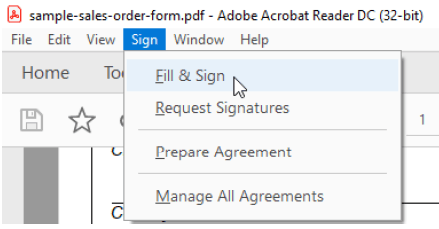
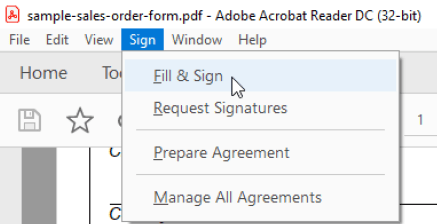
Open the PDF file that you want to insert the signature. Then click Sign and select Fill & Sign
Step 2:
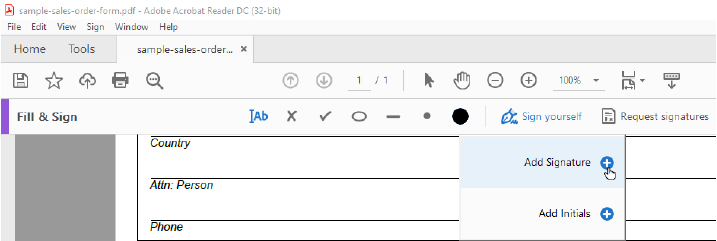
On the Fill & Sign toolbar, click Sign yourself and select Add Signature +
Step 3a:
Select Draw, then you draw your signature within the input bar. Click Apply to input the signature

Step 3b:
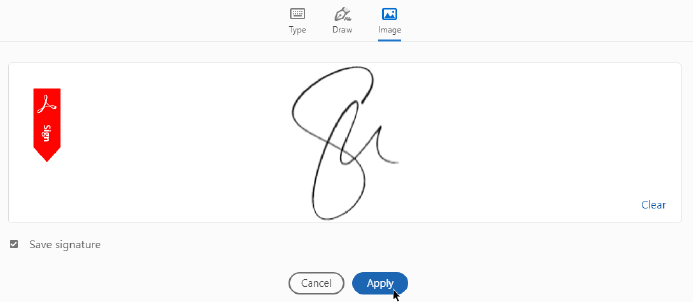
You can scan your signature as an image file and import it. Click the Image icon and browse to select image. Click Apply to input the signature.

Step 4:
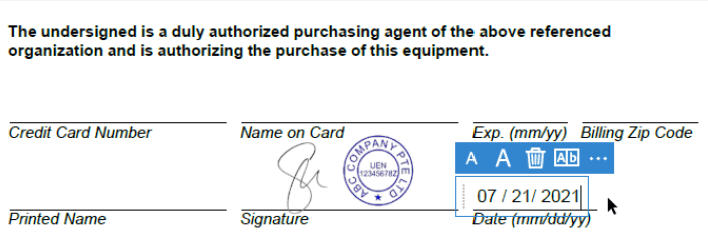
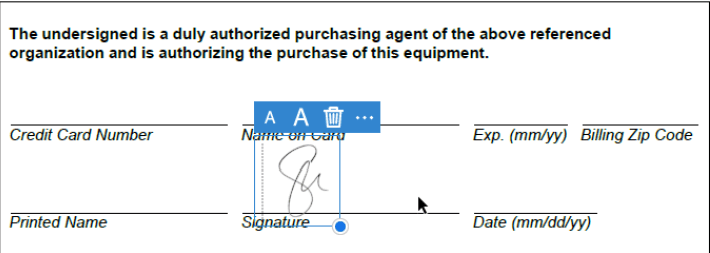
Use your mouse cursor to place the signature at desired position. Left-click to confirm the position.
How to insert company rubber stamp in PDF file
** Important Note: You need to scan and save your company rubber stamp as an image file before you can insert it in PDF file.
Step 1:
On Fill & Sign toolbar, click Sign yourself and select Add Initials +

Step 2:
Click on the Image icon to browse and select image. Click Apply to input the rubber stamp


Step 3:
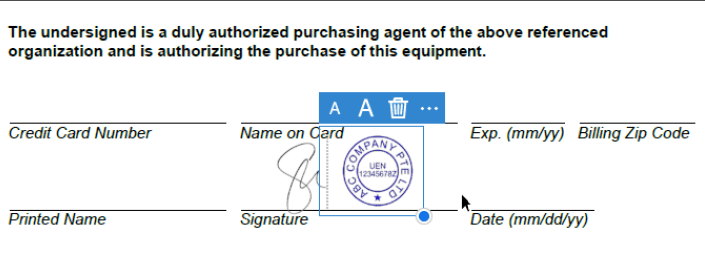
Use your mouse cursor to place the rubber stamp image at desired position. Left-click to confirm the position.
How to insert text in PDF file
Step 1:
Open the PDF file that you want to insert text. Then click Sign and select Fill & Sign
Step 2:
Place the input text bar at the desired field, type and input the text.