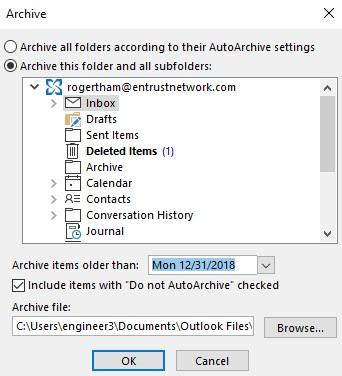
Step: 1 (Access your Outlook)
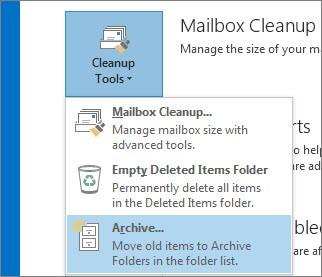
*Do note that the archiving tool has a different name depending on the version.
For Outlook 2013: Click File > Info > Cleanup Tools > Archive.
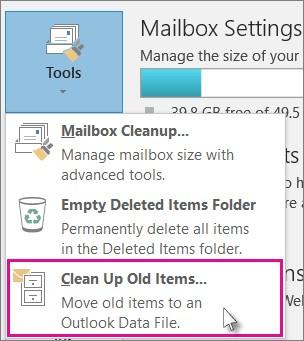
In Outlook 2016: Click File > Info > Tools > Clean up old items
Step: 2
Click the “Archive this folder and all subfolders” option and choose the folder you want to archive. (E.g. I want to archive my Inbox. So, I select my Inbox.)
Under “Archive items older than”, enter a date. (E.g. I want to archive last year emails. So, I select the last day of 2018 as my date)
Check the “Include items with “Do not AutoArchive” checked” box to archive individual items that are excluded from automatic archiving.
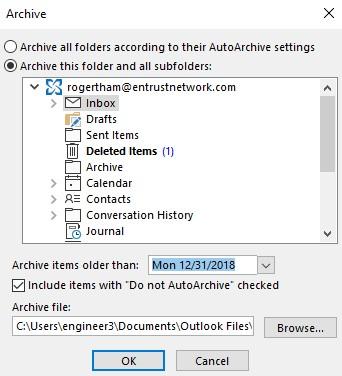
Step: 3
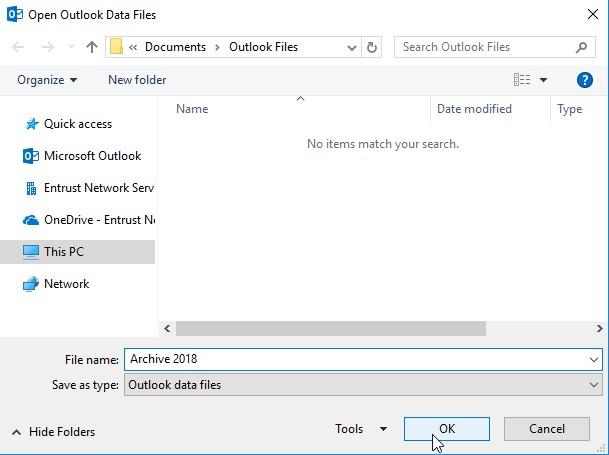
Under the “Archive file:” click on browse to change the file name (E.g. Archive 2018) and choose where you want to save your archived file at. When you are done click “OK”.
Step: 4
Checked that everything is correct and click “OK”.
Outlook will start to Archive your email.