Before setting up Office 365, you need to check the version of your MacBook to see whether your Mac OS is the latest version because different version of Mac OS will have different problem when you set up your email.
How to check your Mac OS
Step: 1
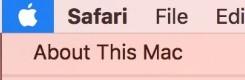
Click the about this MAC
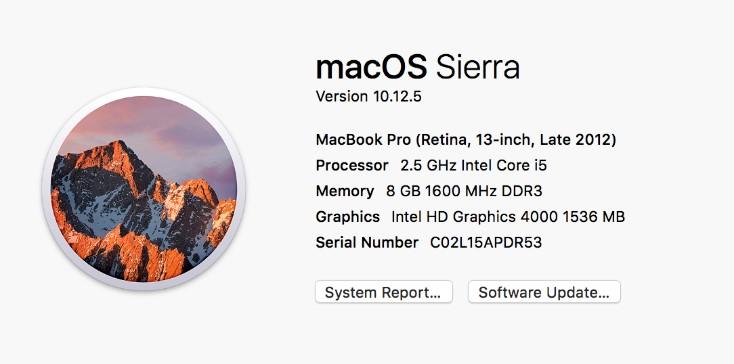
It will show you the version of the MAC OS
How to setup Shared Mailbox on Mac Mail
Step: 1
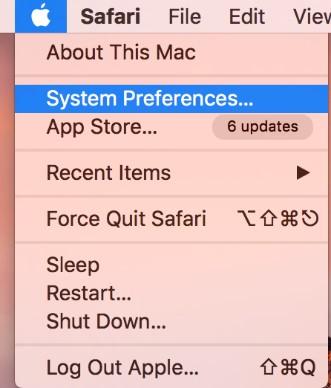
Go to the Apple Logo on the top left bar -> click System Preferences
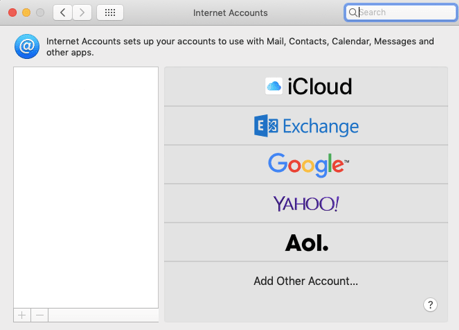
Once you are inside the System Preferences -> click the Internet Accounts -> click the Add Other Account
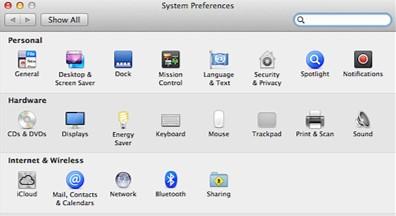
On the add other account, click the Mail account to add the new account or existing account.
Step: 2
Enter all your email information.
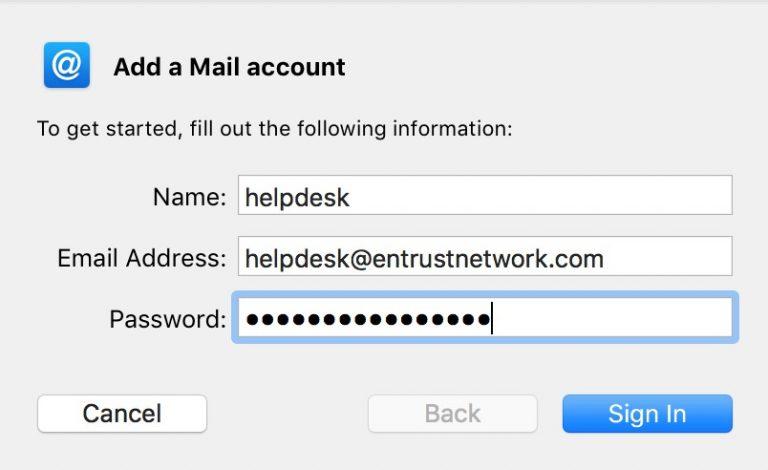
Name: helpdesk (use your own Name)
Email Address: helpdesk@entrustnetwork.com (use your own email address, do not follow this email address. It is just an example)
Password: (your own email password)
Once you finished entering all the information, click sign in.
Click sign in and if there is an error saying “Unable to verify account name or password” just re-enter all your information again.
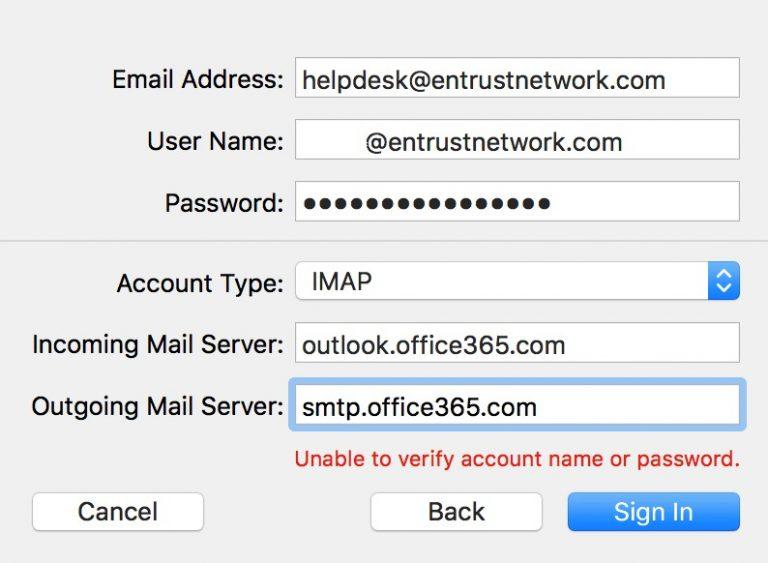
Email address: helpdesk@entrustnetwork.com (this is the email that you have entered in the previous sign in)
Username: e.g. example@entrustnetwork.com (your own username address)
Password: (your app password from the Microsoft Office 365)
Account type: select IMAP
Incoming Mail server: outlook.office365.com
Outgoing Mail server: smtp.office365.com
Step: 3
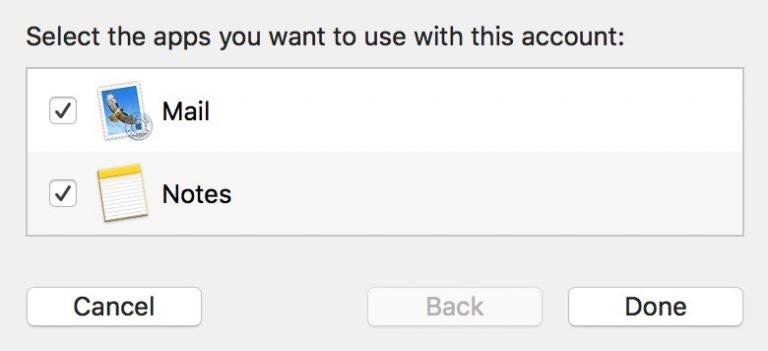
After you click the sign in, it will bring you to the section which you can select which app you want to use with the account. After you have select your app, click Done.
Step: 4
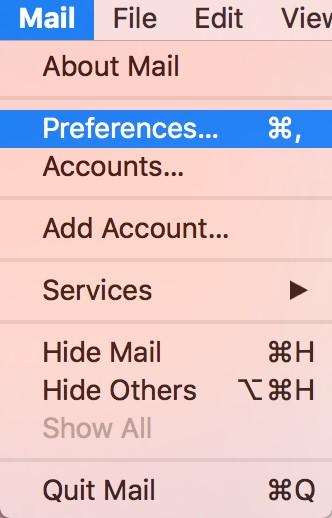
Open your Mac Mail on the bottom of the taskbar. Then you need to go to the preferences on the Mail on the top left bar.
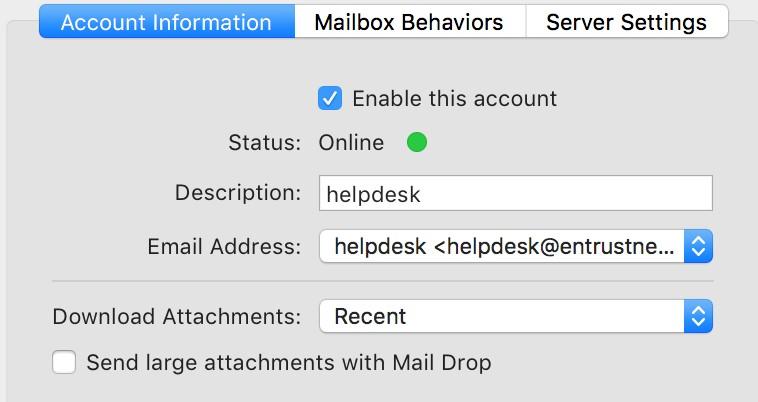
It will show you the Account information. It will show the status of the email account that you have created or added.
Step: 5
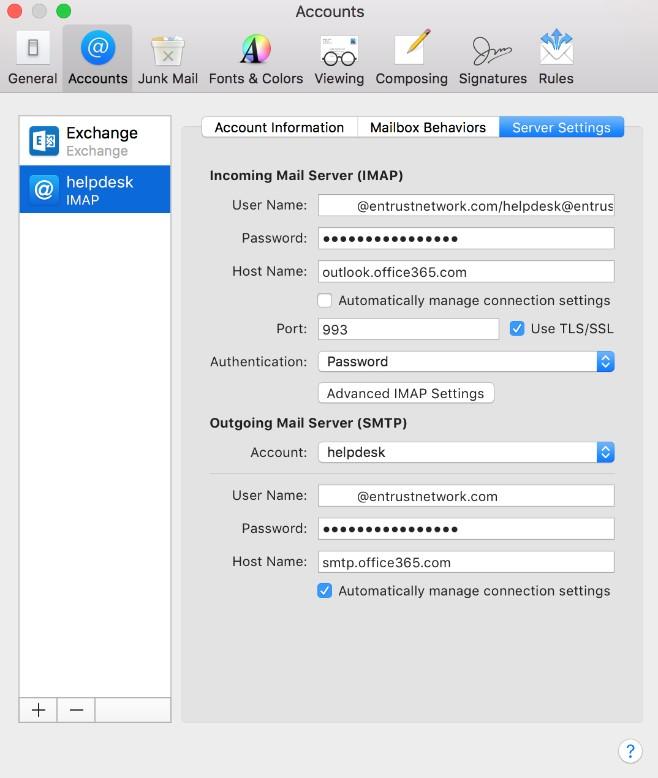
For the Incoming Mail Server(IMAP):
Username: example@entrustnetwork.com/helpdesk@entrustnetwork.com (use your own created email or added email)
Password: (your own app password on Microsoft office 365)
Host name: outlook.office365.com
Untick the “Automatically manage connection settings”
Port number: 993
Ticks: “Use SSL”
Authentication: select “PASSWORD”
For the Outgoing Mail Server(SMTP):
Account type: e.g. helpdesk (type in your own shared mailbox account)
Username: e.g. example@entrustnetwork.com (your own username)
Password: (your own app password on Microsoft office 365)
Host name: smtp.office365.com
Port number: 587
Ticks: “Use SSL”
Authentication: select “PASSWORD”
Step: 6
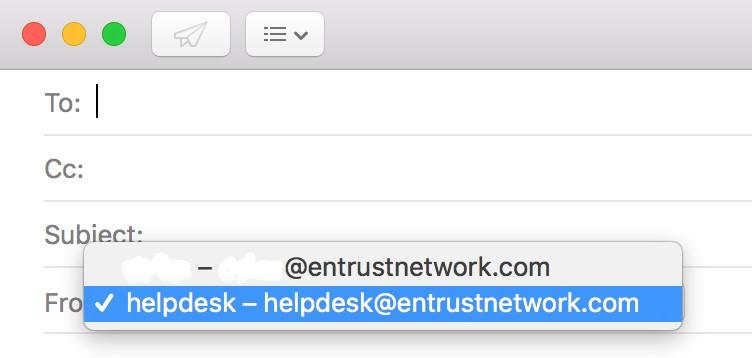
Choose which email address you want to send from. Then send your email.