
Step: 1
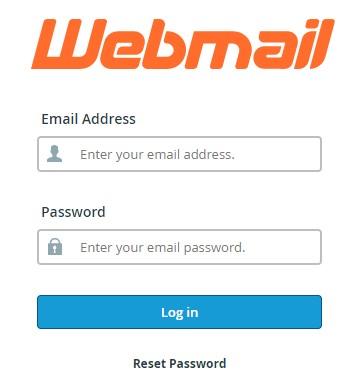
Open internet browser, go to https://yourdomain.com/webmail
Email address: username@yourdomain.com
Password: XXXXXXXX (your password)
Click “Log in”
Step: 2
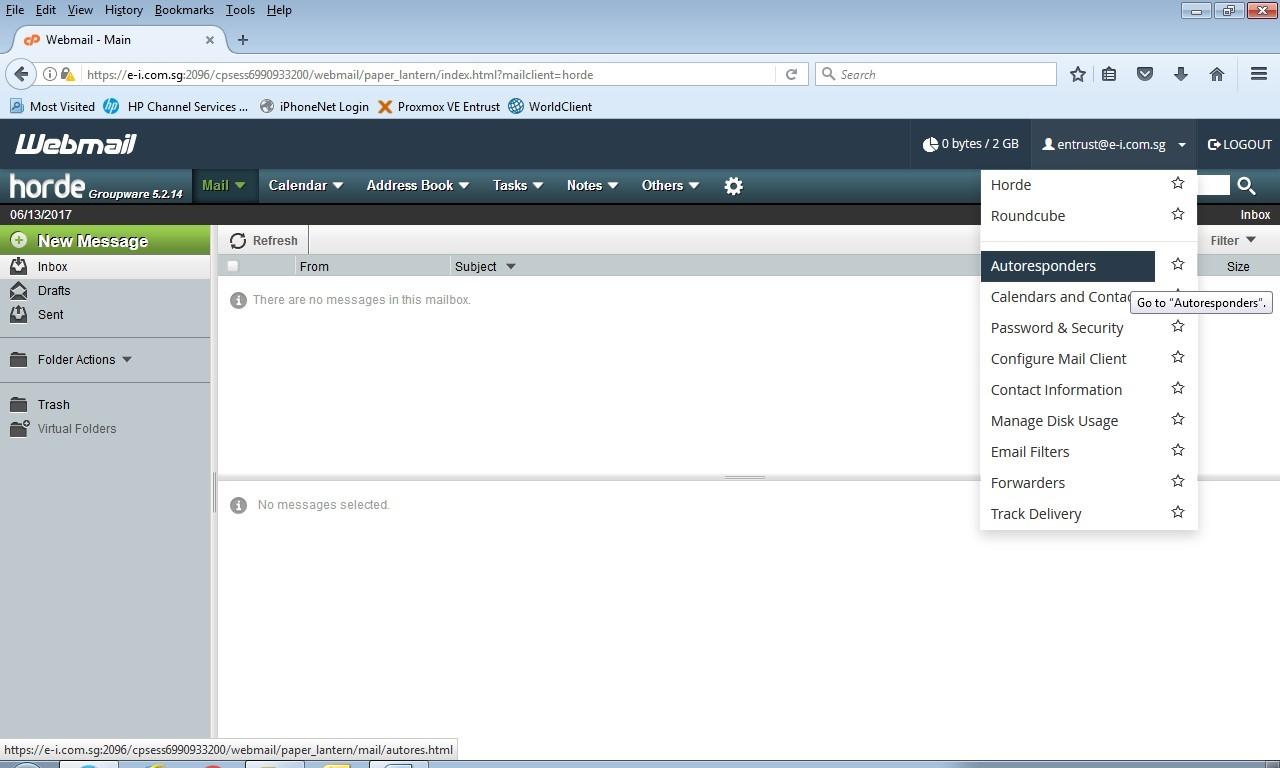
For Horde webmail user, click the username > “Autoresponder”
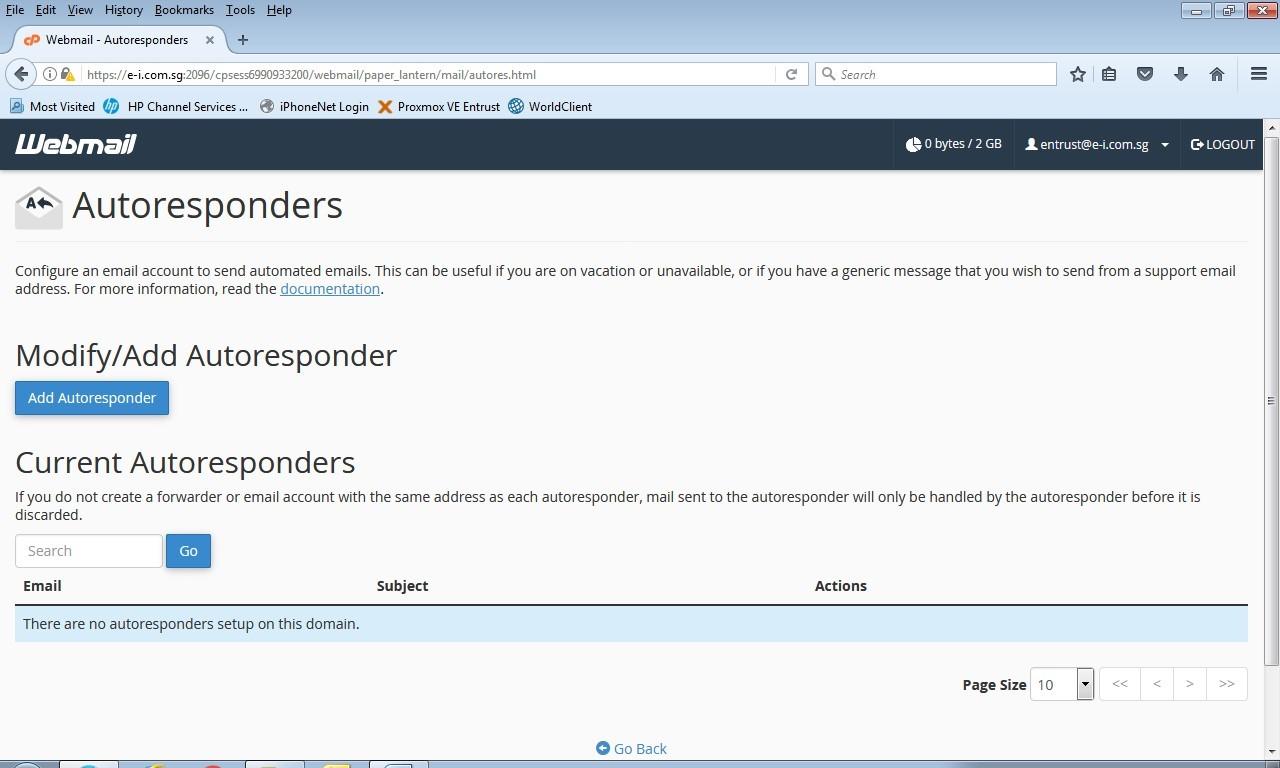
Click “Add Autoresponder”
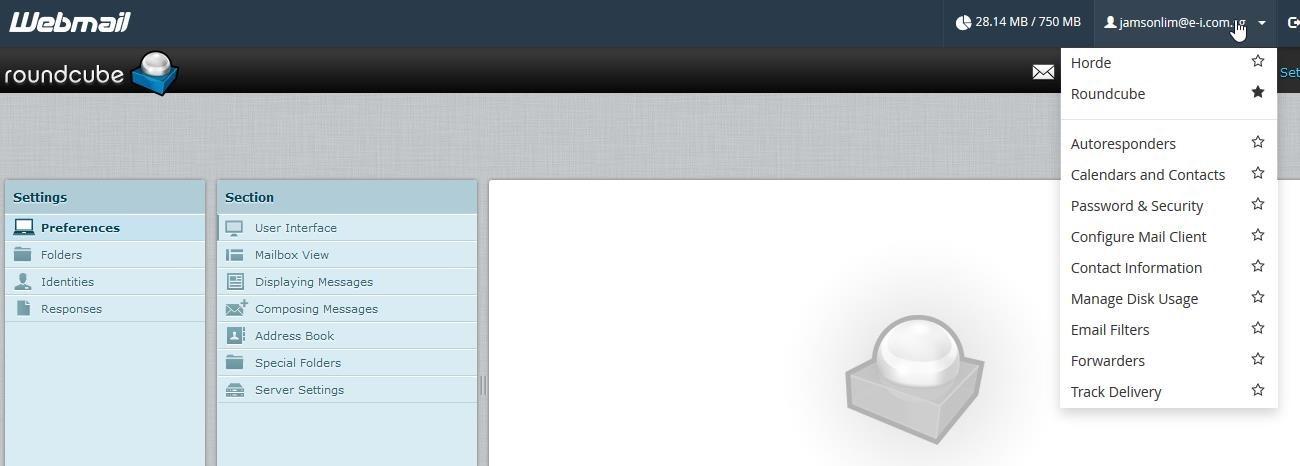
For Roundcube webmail user, setting up of autoresponder is the same
Step: 3
Fill in the relevant fields to create your Out of Office reply.
Once done, click “Create” to create your Autoresponder.
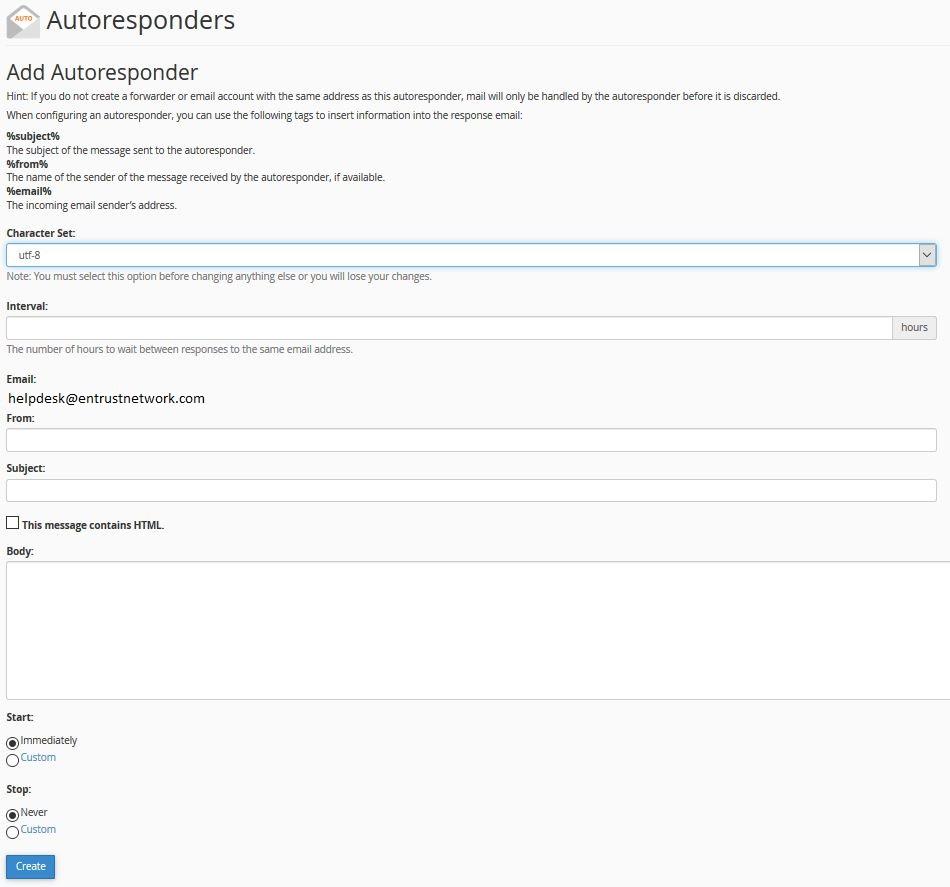
Character Set – The standard Character set is “utf-8”
Interval – You can set the number of hours to wait before autoresponding to the email address that sent you a 2nd email.
Email – List the email address you are setting up the autoresponder for. Your Email Address.
From – You can enter a “From” address here. Which is your Email Address.
Subject – Enter a subject line here. For example: “I am out of the office.”
HTML – Check this if you want to enter HTML into the “Body” of your email.
Body – Enter your Autoresponder message here. For example: “I am out of the office from dd/mm to dd/mm.”
Start – Choose if want this autoresponder to begin Immediately or set a Custom start time.
Stop – Here you can set a Custom date for your Autoresponder to stop responding, or set to Never
