To export the mailboxes
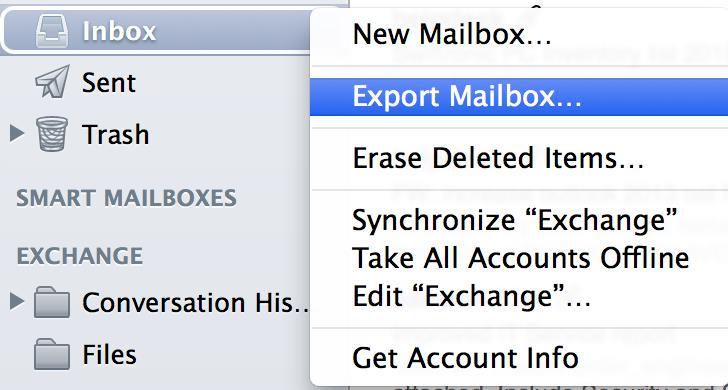
Select one or more mailboxes, right-click the mailboxes then select export mailbox
Choose a folder or create a new folder, then click choose to start exporting the mailboxes

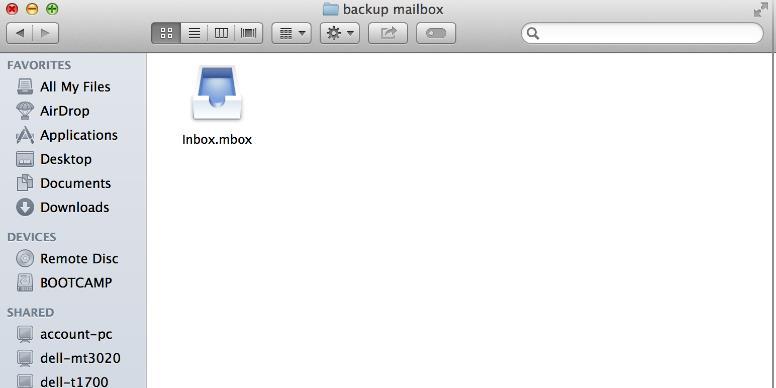
Check the folder that you have exported, to make sure that the mailbox that you exported is in the folder.
To import the mailboxes
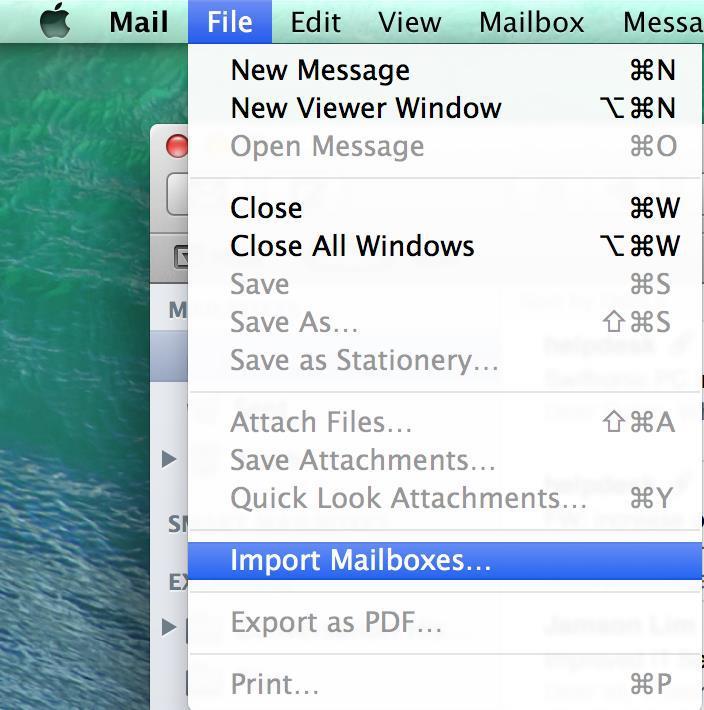
On top of the navigation bar, there is a “File”. Click on the “File”, select “Import Mailboxes”
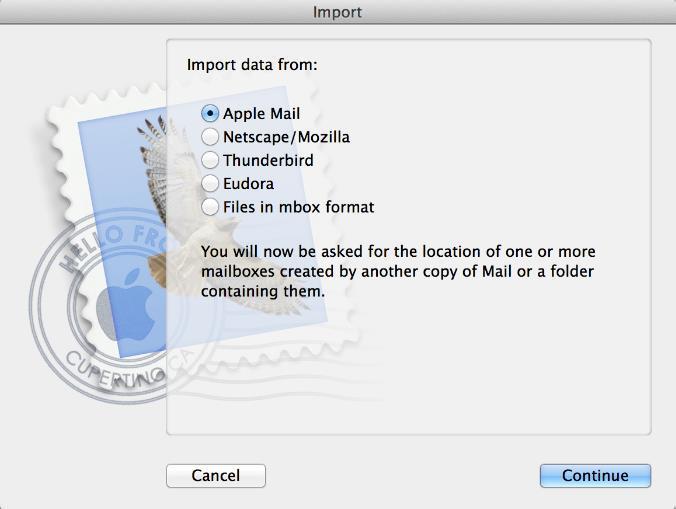
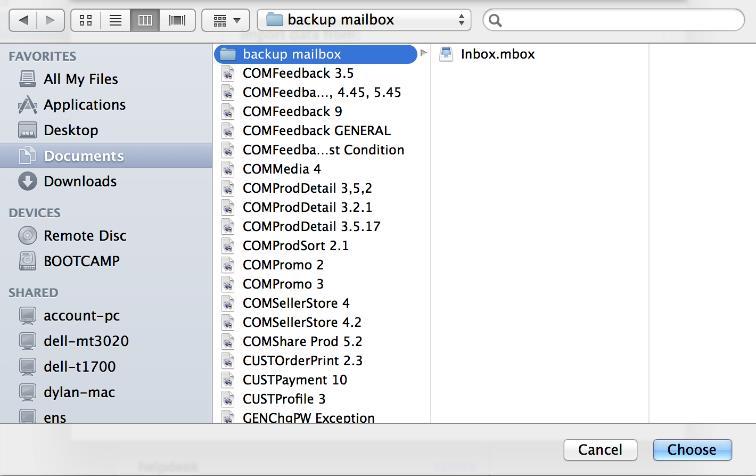
Choose a source in the list, select the folder that you exported and click choose
note:
• if you’re importing a mailbox exported from Mail or a folder, select Apple Mail
• if you’re importing message from a Windows or UNIX computer, select “Files in mbox format” then locate the folder which contains the files.
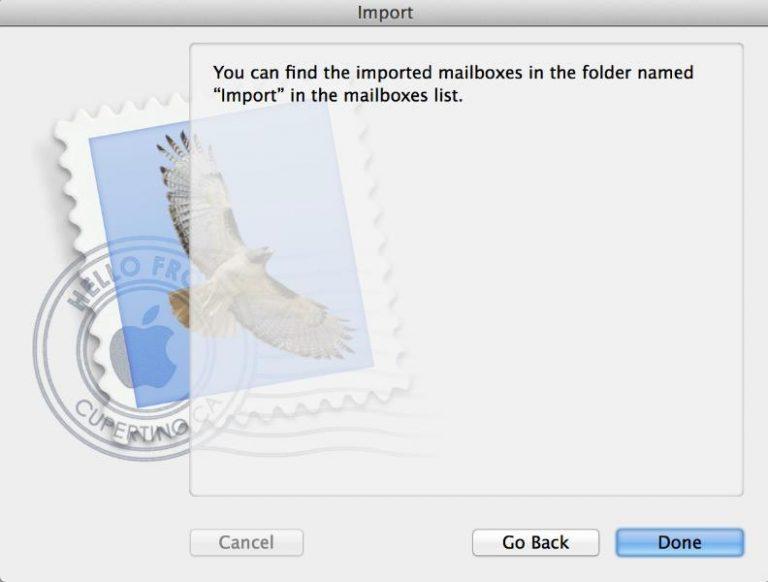
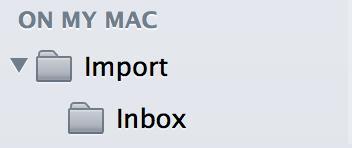
After importing the mail, click Done. You can check your imported mail in “Import” folder.